Ad feed
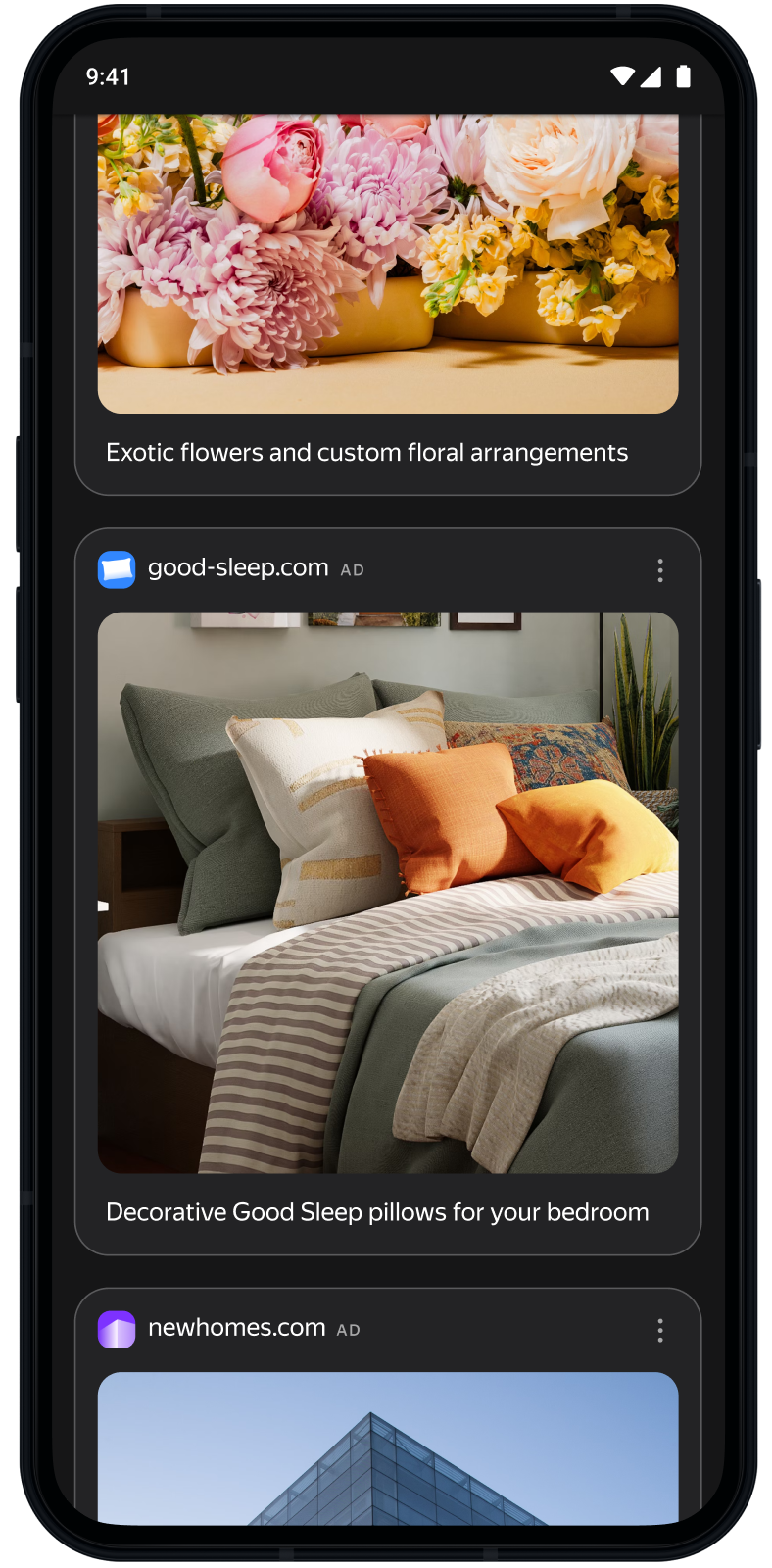
Ad feeds are units that consist of a sequence of ads. Feeds can be added to your app as its main content, or they may come after the existing content. Feeds may contain dozens of ads loaded in parts, multiple ads at a time.
This guide covers the process of integrating ad feeds into Android apps. Besides code samples and instructions, it contains format-specific recommendations and links to additional resources.
Appearance
Prerequisite
- Follow the SDK integration steps described under Quick start.
- First, you need to initialize the advertising SDK.
- Make sure you're using the latest version of the Yandex Mobile Ads SDK.
Implementation
Key steps for integrating ad feeds:
- Configure your ad feed's appearance using the
FeedAdAppearanceobject. - Create and set up a request configuration using the
AdRequestobject. - Create an ad feed object named
FeedAdand register aFeedAdLoadListenerfor ad load callback methods. - Preload your ads as soon as possible by calling
feedAd.preloadAd(). - Create an adapter named
FeedAdAdapterand register aFeedAdEventListenerfor event callback methods. - Set the
FeedAdAdapterin theRecyclerView.adapter.
Key steps
-
Create an ad feed's appearance configuration object named
FeedAdAppearance.The following parameters are available:
cardWidth(required): Sets the width of a served ad in dp (density-independent pixels). Calculate the parameter value based on the screen width minus the required side padding.cardCornerRadius: Sets the radius of rounded corners for a served ad in dp (density-independent pixels).
KotlinJavaval feedMarginDp = 24 val screenWidthDp = (screenWidth / resources.displayMetrics.density).roundToInt() val cardWidthDp = screenWidthDp - 2 * feedMarginDp val cardCornerRadiusDp = 16.0 val feedAdAppearance = FeedAdAppearance.Builder(cardWidthDp) .setCardCornerRadius(cardCornerRadiusDp) .build()DisplayMetrics displayMetrics = getResources().getDisplayMetrics(); int feedMarginDp = 24; int screenWidthDp = Math.round(displayMetrics.widthPixels / displayMetrics.density); val cardWidthDp = screenWidthDp - 2 * feedMarginDp; double cardCornerRadius = 16.0; FeedAdAppearance feedAdAppearance = new FeedAdAppearance.Builder(cardWidth) .setCardCornerRadius(cardCornerRadius) .build(); -
Create and configure a
AdRequestobject.You'll need the ad placement ID obtained in the Boost interface (
AD_UNIT_ID).You can expand ad request parameters by providing information about the user's interests, page context, location, and other additional data in the ad request's
Buildermethods. Adding extra context to ad requests can greatly improve ad relevance. To learn more, see Ad targeting.KotlinJavaval AD_UNIT_ID = "R-M-XXXXXX-Y" // For debugging reasons you can use "demo-feed-yandex" val adRequest = AdRequest.Builder(AD_UNIT_ID).build()String AD_UNIT_ID = "R-M-XXXXXX-Y"; // For debugging reasons you can use "demo-feed-yandex" AdRequest adRequest = new AdRequest.Builder(AD_UNIT_ID).build(); -
Create an ad feed object named
FeedAdand register aFeedAdLoadListenerfor ad load callback methods.KotlinJavaval feedAdLoadListener = object : FeedAdLoadListener { override fun onAdLoaded() { // Called when additional ads are received for display } override fun onAdFailedToLoad(error: AdRequestError) { // Called when additional ads request fails } } val feedAd = FeedAd.Builder(context, adRequest, feedAdAppearance).build() feedAd.loadListener = feedAdLoadListenerFeedAdLoadListener feedAdLoadListener = new FeedAdLoadListener() { @Override public void onAdLoaded() { // Called when additional ads are received for display } @Override public void onAdFailedToLoad(AdRequestError error) { // Called when additional ads request fails } }; FeedAd feedAd = new FeedAd.Builder(context, adRequest, feedAdAppearance).build(); feedAd.setLoadListener(feedAdLoadListener); -
Preload your ad as soon as possible using the
preloadAd()method for theFeedAdobject. Once the ad feed is preloaded, one of theFeedAdLoadListenermethods is called.KotlinJavafeedAd.preloadAd()feedAd.preloadAd(); -
Create an adapter named
FeedAdAdapterand register aFeedAdEventListenerfor event callback methods.KotlinJavaval feedAdEventListener = object : FeedAdEventListener { override fun onAdClicked() { // Called when user clicked on the ad } override fun onAdImpression(impressionData: ImpressionData?) { // Called when impression was observed } } val feedAdAdapter = FeedAdAdapter(feedAd) feedAdAdapter.eventListener = feedAdEventListenerFeedAdEventListener feedAdEventListener = new FeedAdEventListener() { @Override public void onAdClicked() { // Called when user clicked on the ad } @Override public void onAdImpression(ImpressionData impressionData) { // Called when impression was observed } }; FeedAdAdapter feedAdAdapter = new FeedAdAdapter(feedAd); feedAdAdapter.setEventListener(feedAdEventListener); -
Display the ad feed.
As the main listIn addition to an existing listSet the created
FeedAdAdapterin theRecyclerView.adapter.-
Kotlin
binding.feedRecyclerView.layoutManager = LinearLayoutManager(context) binding.feedRecyclerView.adapter = feedAdAdapter -
Java
binding.feedRecyclerView.setLayoutManager(new LinearLayoutManager(context));
binding.feedRecyclerView.setAdapter(feedAdAdapter);
To add your ad feed to an existing
RecyclerViewlist, use the ConcatAdapter.The ConcatAdapter allows you to combine the
RecyclerViewadapter of the existing list and the ad feed adapter. The order of passing arguments to the ConcatAdapter builder sets the order of displaying the lists of respective adapters.-
Kotlin
val screenContentDataAdapter = ScreenContentDataAdapter() // Your own implementation of RecyclerView.Adapter val concatAdapter = ConcatAdapter(listOf(screenContentDataAdapter, feedAdAdapter)) binding.feedRecyclerView.layoutManager = LinearLayoutManager(context) binding.feedRecyclerView.adapter = concatAdapter -
Java
ScreenContentDataAdapter screenContentDataAdapter = new ScreenContentDataAdapter(); // Your own implementation of RecyclerView.Adapter
ConcatAdapter concatAdapter = new ConcatAdapter(Arrays.asList(screenContentDataAdapter, feedAdAdapter));

binding.feedRecyclerView.setLayoutManager(new LinearLayoutManager(context));
binding.feedRecyclerView.setAdapter(concatAdapter);
-
Specifics of ad feed integration
All calls to Yandex Mobile Ads SDK methods must be made from the main thread.
Testing ad feed integration
Using demo ad units for ad testing
Use test ads to check your ad feed integration and the app itself.
To make sure that test ads are returned for each ad request, we created a special demo ad placement ID designed to help you test your ad integration.
Demo Ad Unit ID: demo-feed-yandex.
Warning
Before publishing your app in the store, make sure to replace the demo placement ID with the real ID you obtained in the interface Boost.
For the list of all available demo ad placement IDs, see Demo ad units for testing.
Testing ad integration
You can check if your ad feed is integrated correctly using the SDK's built-in analyzer.
This tool checks whether ads are enabled properly and outputs a detailed report to a log. To view the report, search the keyword “YandexAds” in Logcat, a tool for debugging Android apps.
adb logcat -v brief '*:S YandexAds'
If the integration is successful, the following message is returned:
adb logcat -v brief '*:S YandexAds'
mobileads$ adb logcat -v brief '*:S YandexAds'
I/YandexAds(13719): [Integration] Ad type feed was integrated successfully
If there are any ad integration issues, you'll get a detailed issue report and troubleshooting recommendations.