Step 1. Add an app
Role: monetization manager / app developer
Monetization is available for apps from the following stores:
- the App Store
- Google Play
- Huawei AppGallery
- Xiaomi (getapp.store)
- RuStore
To learn how to add an app, see Adding an app.
Step 2. Pass moderation
Once you've added your app, it'll be automatically queued for moderation, and you'll need to wait for it to get approved. For more information, see App moderation.
Step 3. Verify that you're the owner of the app
Role: monetization manager / app developer
Verify your app using the developer's email or site specified in the app store.
One of the ways to do that is by using the app-ads.txt file. Learn about app-ads.txt and how to configure it.
Step 4. Add an ad unit
Role: monetization manager / app developer
The following ad formats are available in the Boost:
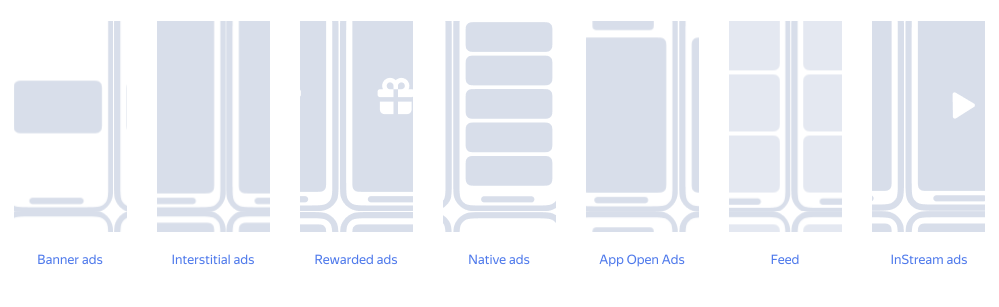
After adding the app, create an ad unit of the required format: enter its name and specify the necessary settings.
Once created, the unit is assigned a unique ID in the following format: R-M-0000000-0.
For detailed instructions on how to create units of different formats, see Creating ad units.
Resource Quality
Impressions on high-quality sites are paid at a higher rate. To learn how to improve your site’s quality, see the section Improving resource quality and increasing ad revenue.
Step 5. Integrate the SDK
Role: app developer
Depending on the platform, determine the monetization method and integrate ad units into the app code:
Checklist 1. Yandex Mediation (all networks)
-
Check the minimum app requirements:
-
Use Android Studio 2021 or higher.
-
Check that your app's build file uses the following values:
- minSdkVersion 21 or higher.
- compileSdkVersion 31 or higher.
-
-
Enable the single build dependency.
-
Initialize the Yandex Mobile Ads SDK.
-
Enable the necessary ad formats.
-
Check integration.
Checklist 2. Yandex Mediation (connecting individual adapters)
-
Check the minimum app requirements:
-
Use Android Studio 2021 or higher.
-
Check that your app's build file uses the following values:
- minSdkVersion 21 or higher.
- compileSdkVersion 31 or higher.
-
-
Connect the Yandex Mobile Ads SDK dependency.
-
Initialize the Yandex Mobile Ads SDK.
-
Connect the required adapters separately using the appropriate packages.
-
Enable the necessary ad formats.
-
Check integration.
Checklist 3. Third-party mediation
Connect the adapter: to integrate ad units into Google AdMob, use the Yandex Mobile Ads SDK adapters. To integrate with a different ad exchange, use its native adapter.
Checklist 4. Direct SDK call
-
Check the minimum app requirements:
-
Use Android Studio 2021 or higher.
-
Check that your app's build file uses the following values:
- minSdkVersion 21 or higher.
- compileSdkVersion 31 or higher.
-
-
Connect the Yandex Mobile Ads SDK dependency.
-
Initialize the Yandex Mobile Ads SDK.
-
Enable the necessary ad formats.
-
Check integration.
Checklist 1. Yandex Mediation (all networks)
-
Check the minimum app requirements: use iOS 13 or higher for integration.
-
Enable the single build dependency.
-
Initialize the Yandex Mobile Ads SDK.
-
Enable the necessary ad formats.
-
Check integration.
Checklist 2. Yandex Mediation (connecting individual adapters)
-
Check the minimum app requirements: use iOS 13 or higher for integration.
-
Connect the Yandex Mobile Ads SDK dependency.
-
Initialize the Yandex Mobile Ads SDK.
-
Connect the required adapters separately using the appropriate packages.
-
Enable the necessary ad formats.
-
Check integration.
Checklist 3. Third-party mediation
Connect the adapter: to integrate ad units into Google AdMob, use the Yandex Mobile Ads SDK adapters. To integrate with a different ad exchange, use its native adapter.
Checklist 4. Direct SDK call
-
Check the minimum app requirements: use iOS 13 or higher for integration.
-
Connect the Yandex Mobile Ads SDK dependency.
-
Initialize the Yandex Mobile Ads SDK.
-
Enable the necessary ad formats.
-
Check integration.
Checklist 1. Yandex Mediation (all networks)
-
Check the minimum app requirements:
- To use this SDK, your app's Target API Level must be set to 31 or above.
- To load any type of ad, iOS version 13 or higher is required.
-
Enable the single build dependency.
-
Initialize the Yandex Mobile Ads SDK.
-
Enable the necessary ad formats.
-
Check integration.
Checklist 2. Yandex Mediation (connecting individual adapters)
-
Check the minimum app requirements:
- To use this SDK, your app's Target API Level must be set to 31 or above.
- To load any type of ad, iOS version 13 or higher is required.
-
Connect the Yandex Mobile Ads SDK dependency.
-
Initialize the Yandex Mobile Ads SDK.
-
Connect the required adapters separately using the appropriate packages.
-
Enable the necessary ad formats.
-
Check integration.
Checklist 3. Third-party mediation
Connect the adapter: to integrate ad units into Google AdMob, use the Yandex Mobile Ads SDK adapters. To integrate with a different ad exchange, use its native adapter.
Checklist 4. Direct SDK call
-
Check the minimum app requirements:
- To use this SDK, your app's Target API Level must be set to 31 or above.
- To load any type of ad, iOS version 13 or higher is required.
-
Connect the Yandex Mobile Ads SDK dependency.
-
Initialize the Yandex Mobile Ads SDK.
-
Enable the necessary ad formats.
-
Check integration.
Checklist 1. Yandex Mediation (all networks)
-
Check the minimum app requirements:
-
Android
-
Use Android Studio 2021 or higher.
-
Check that your app's build file uses the following values:
- minSdkVersion 21 or higher.
- compileSdkVersion 31 or higher.
-
-
iOS
- Use iOS 13 or higher.
-
-
Enable the single build dependency.
-
Initialize the Yandex Mobile Ads SDK.
-
Enable the necessary ad formats.
-
Check integration.
Checklist 2. Yandex Mediation (connecting individual adapters)
-
Check the minimum app requirements:
-
Android
-
Use Android Studio 2021 or higher.
-
Check that your app's build file uses the following values:
- minSdkVersion 21 or higher.
- compileSdkVersion 31 or higher.
-
-
iOS
- Use iOS 13 or higher.
-
-
Connect the Yandex Mobile Ads SDK dependency.
-
Initialize the Yandex Mobile Ads SDK.
-
Connect the required adapters separately using the appropriate packages.
-
Enable the necessary ad formats.
-
Check integration.
Checklist 3. Direct SDK call
-
Check the minimum app requirements:
-
Android
-
Use Android Studio 2021 or higher.
-
Check that your app's build file uses the following values:
- minSdkVersion 21 or higher.
- compileSdkVersion 31 or higher.
-
-
iOS
- Use iOS 13 or higher.
-
-
Connect the Yandex Mobile Ads SDK dependency.
-
Initialize the Yandex Mobile Ads SDK.
-
Enable the necessary ad formats.
-
Check integration.
Checklist 1. Yandex Mediation (all networks)
-
Check the minimum app requirements:
-
Android
-
Use Android Studio 2021 or higher.
-
Check that your app's build file uses the following values:
- minSdkVersion 23 or higher.
- compileSdkVersion 34 or higher.
-
To load any type of ad, Android version 4.1 or higher is required.
-
Video ads are only served for devices with Android 5 or higher.
-
-
iOS
- Use iOS 13 or higher.
- Use Xcode 16.4 or higher.
-
-
Enable the single build dependency.
-
Initialize the Yandex Mobile Ads SDK.
-
Enable the necessary ad formats.
-
Check integration.
Checklist 2. Yandex Mediation (connecting individual adapters)
-
Check the minimum app requirements:
-
Android
-
Use Android Studio 2021 or higher.
-
Check that your app's build file uses the following values:
- minSdkVersion 23 or higher.
- compileSdkVersion 34 or higher.
-
To load any type of ad, Android version 4.1 or higher is required.
-
Video ads are only served for devices with Android 5 or higher.
-
-
iOS
- Use iOS 13 or higher.
- Use Xcode 16.4 or higher.
-
-
Connect the Yandex Mobile Ads SDK dependency.
-
Initialize the Yandex Mobile Ads SDK.
-
Connect the required adapters separately using the appropriate packages.
-
Enable the necessary ad formats.
-
Check integration.
Checklist 3. Direct SDK call
-
Check the minimum app requirements:
-
Android
-
Use Android Studio 2021 or higher.
-
Check that your app's build file uses the following values:
- minSdkVersion 23 or higher.
- compileSdkVersion 34 or higher.
-
To load any type of ad, Android version 4.1 or higher is required.
-
Video ads are only served for devices with Android 5 or higher.
-
-
iOS
- Use iOS 13 or higher.
- Use Xcode 16.4 or higher.
-
-
Connect the Yandex Mobile Ads SDK dependency.
-
Initialize the Yandex Mobile Ads SDK.
-
Enable the necessary ad formats.
-
Check integration.
Checklist 1. Yandex Mediation (all networks)
-
Check the minimum app requirements:
-
Android
-
Use Android Studio 2021 or higher.
-
For the common module's Android target, set the following:
- minSdkVersion 24 or higher.
- compileSdkVersion 36 or higher.
-
Set the JVM 11 target bytecode version for Android (for example, in Kotlin, set
jvmTargettoJvmTarget.JVM_11and configure Java 11 compatibility in Gradle).
-
-
iOS
-
Use iOS 13 or higher — for example, set
platform :ios, '13.0'in yourPodfile. -
Add the
YandexMobileAdspod using CocoaPods with thehttps://cdn.cocoapods.org/source, then runpod installfrom the directory containing yourPodfile(for example,iosApp).
-
-
Compose Multiplatform
- Use Kotlin Multiplatform with Compose Multiplatform and make sure to enable both Android and iOS targets in the module where you're integrating ads.
-
-
Enable the single build dependency.
-
Initialize the Yandex Mobile Ads SDK.
-
Enable the necessary ad formats.
-
Check integration.
Checklist 2. Yandex Mediation (connecting individual adapters)
-
Check the minimum app requirements:
-
Android
-
Use Android Studio 2021 or higher.
-
For the common module's Android target, set the following:
- minSdkVersion 24 or higher.
- compileSdkVersion 36 or higher.
-
Set the JVM 11 target bytecode version for Android (for example, in Kotlin, set
jvmTargettoJvmTarget.JVM_11and configure Java 11 compatibility in Gradle).
-
-
iOS
-
Use iOS 13 or higher — for example, set
platform :ios, '13.0'in yourPodfile. -
Add the
YandexMobileAdspod using CocoaPods with thehttps://cdn.cocoapods.org/source, then runpod installfrom the directory containing yourPodfile(for example,iosApp).
-
-
Compose Multiplatform
- Use Kotlin Multiplatform with Compose Multiplatform and make sure to enable both Android and iOS targets in the module where you're integrating ads.
-
-
Connect the Yandex Mobile Ads SDK dependency.
-
Initialize the Yandex Mobile Ads SDK.
-
Connect the required adapters separately using the appropriate packages.
-
Enable the necessary ad formats.
-
Check integration.
Checklist 3. Direct SDK call
-
Check the minimum app requirements:
-
Android
-
Use Android Studio 2021 or higher.
-
For the common module's Android target, set the following:
- minSdkVersion 24 or higher.
- compileSdkVersion 36 or higher.
-
Set the JVM 11 target bytecode version for Android (for example, in Kotlin, set
jvmTargettoJvmTarget.JVM_11and configure Java 11 compatibility in Gradle).
-
-
iOS
-
Use iOS 13 or higher — for example, set
platform :ios, '13.0'in yourPodfile. -
Add the
YandexMobileAdspod using CocoaPods with thehttps://cdn.cocoapods.org/source, then runpod installfrom the directory containing yourPodfile(for example,iosApp).
-
-
Compose Multiplatform
- Use Kotlin Multiplatform with Compose Multiplatform and make sure to enable both Android and iOS targets in the module where you're integrating ads.
-
-
Connect the Yandex Mobile Ads SDK dependency.
-
Initialize the Yandex Mobile Ads SDK.
-
Enable the necessary ad formats.
-
Check integration.
Finally, add payment details to receive payments
Role: monetization manager / app developer
Boost shares ad placement revenue with the partners of the Boost. We need your payment details and copies of the required documents in order to transfer your ad revenue. To find step-by-step registration instructions, see Documents and payments.
Additional Boost tools
Role: monetization manager / app developer
- See the required documents and payment terms. Note that you have to accept the terms of the offer in order to receive revenue.
- Delegate monetization setup to the Easy Monetization service from Yandex.