App open ads
App open ads are a special ad format for monetizing app load screens. These ads can be closed at any time and are designed to be served:
- When the app is launched.
- When the app is brought to the foreground.
- When returning to the app from the background.
This guide will show how to integrate app open ads into a Flutter app. Besides code samples and instructions, it contains format-specific recommendations and links to additional resources.
Alert
App open ads are only supported for apps with a vertical orientation. These ads won't be served for apps with a horizontal orientation.
Appearance
App Open Ads include a Go to the app button, which indicates to users that they're currently in your app and can close the ad.
Prerequisite
- Follow the Yandex Mobile Ads Flutter plugin integration steps described under Quick start.
- Make sure that you have the latest version of the Yandex Mobile Ads Flutter plugin. If you're using mediation, update to the most recent single build version.
Terms
- Cold start: Launching the app when it isn't present in RAM, which creates a new app session.
- Hot start: Bringing the app from the background, where it's paused in RAM, into the foreground.
Implementation
- Create an
AppOpenAdLoader. - Set up the parameters for loading ads using an
AdRequestobject. - Load the ad with the
AppOpenAdLoader.loadAd(adRequest:)method. - Use the
didChangeAppLifecycleStatemethod in theWidgetsBindingObserverinterface to handle app status changes and display app open ads. - Install callback functions for events where users interact with your ad.
- Show the ad by calling
AppOpenAd.show(). - Release the resources.
Key steps
-
Create an
AppOpenAdLoader.@override void initState() { super.initState(); YandexAds.initialize(); } final _adLoader = AppOpenAdLoader(); AppOpenAd? _appOpenAd; -
Set up the parameters for loading ads using an
AdRequestobject.final _adUnitId = 'demo-appopenad-yandex'; // replace with "R-M-XXXXXX-Y" late var _adRequest = AdRequest(adUnitId: _adUnitId);adUnitId: A unique identifier that is issued in the Boost interface and looks like this: R-M-XXXXXX-Y.Tip
For testing purposes, you can use the demo ad unit ID: "demo-appopenad-yandex". Before publishing your ad, make sure you replace the demo unit ID with a real ad unit ID.
You can expand the ad request parameters using
AdRequestby passing user interests, contextual page data, location details, or other data as additional arguments. Adding extra context to ad requests can greatly improve ad relevance. To learn more, see Ad targeting. -
Load the ad with the
loadAdmethod, passingAdRequestas an argument.Future<void> _loadAppOpenAd() async { try { _appOpenAd = await _adLoader.loadAd(adRequest: _adRequest); } on AdRequestError catch (error) { // Ad failed to load with error. // Attempting to load a new ad from the error handler is strongly discouraged. } } -
Use the
didChangeAppLifecycleStatemethod in theWidgetsBindingObserverinterface to handle app status changes and display app open ads.@override void initState() { super.initState(); // ... WidgetsBinding.instance.addObserver(this); } @override void didChangeAppLifecycleState(AppLifecycleState state) { if (state == AppLifecycleState.resumed) { _showAdIfAvailable(); } } -
Register listeners for events where users interact with your ad.
static var isAdShowing = false; void _setAdEventListener({required AppOpenAd appOpenAd }) { appOpenAd.setAdEventListener( eventListener: AppOpenAdEventListener( onAdShown: () { // Called when an ad is shown. isAdShowing = true; }, onAdFailedToShow: (error) { // Called when an ad failed to show. isAdShowing = false; // Clear resources after Ad dismissed. _clearAppOpenAd(); // Now you can preload the next ad. _loadAppOpenAd(); }, onAdDismissed: () { // Called when an ad is dismissed. isAdShowing = false; // Clear resources. _clearAppOpenAd(); // Now you can preload the next ad. _loadAppOpenAd(); }, onAdClicked: () { // Called when a click is recorded for an ad. }, onAdImpression: (data) { // Called when an impression is recorded for an ad. } ) ); } -
Show the ad by calling
AppOpenAd.show().Future<void> _showAdIfAvailable() async { var appOpenAd = _appOpenAd; if (appOpenAd != null && !isAdShowing) { _setAdEventListener(appOpenAd: appOpenAd); await appOpenAd.show(); await appOpenAd.waitForDismiss(); } else { _loadAppOpenAd(); } } -
Clear the links for shown ads if you no longer use them. That releases the resources and prevents memory leaks.
void _clearAppOpenAd() { _appOpenAd?.destroy(); _appOpenAd = null; }
Full code example
class _AppOpenAdPageState extends State<AppOpenAdPage> with WidgetsBindingObserver {
final _adUnitId = 'demo-appopenad-yandex';
late var _adRequest = AdRequest(adUnitId: _adUnitId);
AppOpenAd? _appOpenAd;
final _adLoader = AppOpenAdLoader();
static var isAdShowing = false;
static var isColdStartAdShown = false;
@override
void initState() {
super.initState();
YandexAds.initialize();
_loadAppOpenAd();
WidgetsBinding.instance.addObserver(this);
}
Future<void> _loadAppOpenAd() async {
try {
_appOpenAd = await _adLoader.loadAd(adRequest: _adRequest);
if (!isColdStartAdShown) {
_showAdIfAvailable();
isColdStartAdShown = true;
}
} on AdRequestError catch (error) {
// The ad failed to load
// Attempting to load a new ad from the error handler is strongly discouraged.
}
}
@override
void didChangeAppLifecycleState(AppLifecycleState state) {
if (state == AppLifecycleState.resumed) {
_showAdIfAvailable();
}
}
void _setAdEventListener({required AppOpenAd appOpenAd }) {
appOpenAd.setAdEventListener(
eventListener: AppOpenAdEventListener(
onAdShown: () {
// Called when an ad is shown.
isAdShowing = true;
},
onAdFailedToShow: (error) {
// Called when an ad failed to show.
// Clear resources after Ad dismissed.
_clearAppOpenAd();
// Now you can preload the next ad.
_loadAppOpenAd();
},
onAdDismissed: () {
// Called when an ad is dismissed.
isAdShowing = false;
// Clear resources.
_clearAppOpenAd();
// Now you can preload the next ad.
_loadAppOpenAd();
},
onAdClicked: () {
// Called when a click is recorded for an ad.
},
onAdImpression: (data) {
// Called when an impression is recorded for an ad.
}
)
);
}
Future<void> _showAdIfAvailable() async {
    var appOpenAd = _appOpenAd;
    if (appOpenAd != null && !isAdShowing) {
        _setAdEventListener(appOpenAd: appOpenAd);
        await appOpenAd.show();
        await appOpenAd.waitForDismiss();
    } else {
        _loadAppOpenAd();
    }
}
void _clearAppOpenAd() {
    _appOpenAd?.destroy();
    _appOpenAd = null;
}
}
Features of app open ad integration
- Ads may take a long time to load, so you should avoid increasing the cold start time if the ad hasn't loaded.
- Preload ads for subsequent hot start impressions in advance.
- We don't recommend loading app open ads simultaneously with other ad formats at app startup, as the app may be downloading essential operational data. Doing so could lead to excessive loads on your device and internet connection, resulting in longer ad load times.
- If the
OnAdFailedToLoadevent returns an error, don't try to load a new ad again. If there's no other option, limit the number of ad load retries. This will help avoid constant unsuccessful requests and connection issues if there are limitations.
Testing App Open Ad integration
Using demo ad units for ad testing
Use test ads to check your ad integration and the app itself. To make sure that test ads are returned for each ad request, you can use a special demo ad placement ID.
Demo adUnitId: demo-appopenad-yandex.
Warning
Before publishing your app in the store, make sure to replace the demo placement ID with the real ID you obtained in the Boost interface.
For the list of all available demo ad placement IDs, see Demo ad units for testing.
Testing ad integration
You can check if your app open ads are integrated correctly using the SDK's built-in analyzer. A detailed report with the test results will appear in the log.
To view the report, search for the keyword “YandexAds” in Logcat, a tool for debugging Android apps.
adb logcat -v brief '*:S YandexAds'
If the integration is successful, the following message is returned:
adb logcat -v brief '*:S YandexAds'
mobileads$ adb logcat -v brief '*:S YandexAds'
I/YandexAds(13719): [Integration] Ad type App Open Ad was integrated successfully
If there are any ad integration issues, you'll get a detailed issue report and troubleshooting recommendations.
Using demo ad units for ad testing
Use test ads to check your ad integration at app launch and during your testing process. To make sure that test ads are returned for each ad request, you can use a special demo ad placement ID.
Demo adUnitId: demo-appopenad-yandex.
Warning
Before publishing your app in the store, make sure to replace the demo placement ID with the real ID you obtained in the Boost interface.
For the list of all available demo ad placement IDs, see Demo ad units for testing.
Testing ad integration
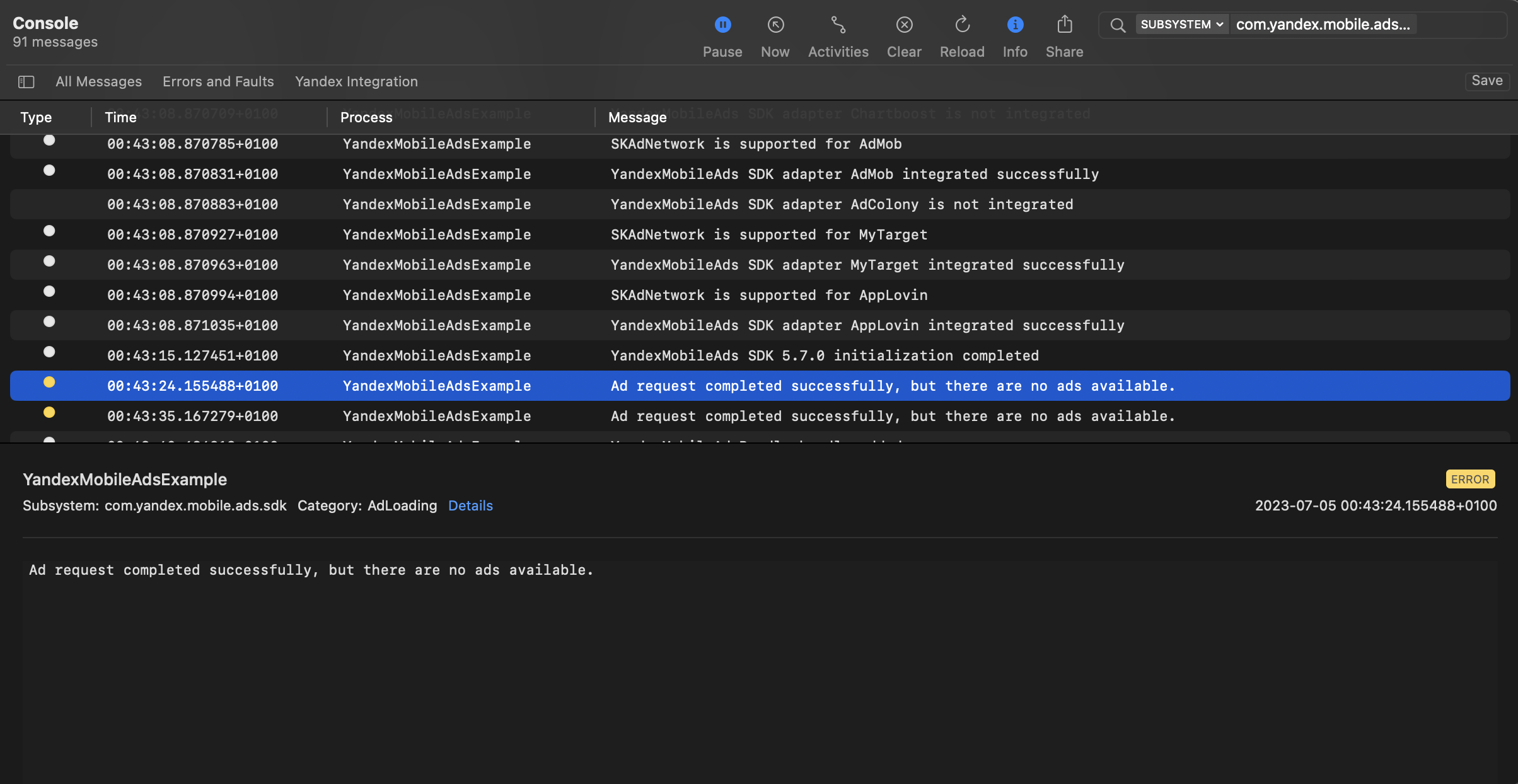
You can test your ad integration using the native Console tool.
To view detailed logs, call the YandexAds class's enableLogging method.
YandexAds.enableLogging()
To view SDK logs, go to the Console tool and set Subsystem = com.mobile.ads.ads.sdk. You can filter logs by category or error level.
If you're having problems integrating ads, you'll get a detailed report on the issues and recommendations for how to fix them.
Recommendations
-
We don't recommend showing App Open Ads before the app reaches the splash screen.
Showing the splash screen enhances the user experience, making it more intuitive. This way, the user will know that they opened the right app and won't be surprised or confused by the ad. On this screen, you can also warn users about the upcoming ad. To do this, use a loading indicator or a simple text message informing the user that they can continue viewing the app content after the ad.
-
If there's a delay between requesting and rendering the ad, the user might briefly open your app and then unexpectedly see an ad unrelated to the contents. This can negatively impact the user experience, so it's best to avoid such situations. One solution is to show the splash screen before displaying the main app content and to begin ad impressions from that screen. We don't recommend displaying an ad if the app has already opened content after the splash screen.
-
Wait for new users to open the app and use it a few times before starting to serve App Open Ad impressions. Show the ad only to users who meet specific criteria (for example, if they completed a particular level, opened the app a certain number of times, or don't participate in reward offers). We don't recommend displaying an ad immediately after the app is installed.
-
Adjust the frequency of impressions based on user behavior. We don't recommend serving an ad at every cold or hot app start.
-
Display ads only if the app has been running in the background for a certain time (for example, 30 seconds, 2 minutes, or 15 minutes).
-
Be sure to conduct tests, because each app is unique and requires its own approach to maximize revenue without sacrificing user retention or time spent in the app. User behavior and engagement may change over time, so we recommend periodically testing different display strategies for App Open Ads within your app.
Additional resources
You can view complete integration examples here: