Rewarded ads
Rewarded ads are a popular fullscreen ad format where users receive incentives for viewing ads.
Ad impressions are opt-in: for example, users can initiate them to get game bonuses or extra lives.
Strong user motivation makes this ad format the most popular and profitable adoption in free apps.
Appearance
This guide will show you how to integrate interstitial ads into a Flutter app. Besides code samples and instructions, it also contains format-specific recommendations and links to additional resources.
Prerequisite
- Follow the Yandex Mobile Ads Flutter plugin integration steps described under Quick start.
- Make sure that you have the latest version of the Yandex Mobile Ads Flutter plugin. If you're using mediation, update to the most recent single build version.
Implementation
Key steps for integrating rewarded ads:
- Create and configure a
RewardedAdLoader. - Load the
RewardedAdobject. - Register the
RewardedAdEventListenerlistener for ad callback methods. - Display the
RewardedAdobject. - Reward the user for viewing the ad.
Features of rewarded ad integration
If the onAdFailedToLoad() callback returns an error, don't try to load a new ad again. If there's no other option, limit the number of ad load retries. This will help avoid constant unsuccessful requests and connection issues if there are limitations.
Loading ads
To load your rewarded ads, create a RewardedAdLoader object.
You will need the ad unit ID (adUnitId) obtained from the Boost interface.
You can expand ad request parameters through AdRequest, by passing user interests, contextual page data, location, or other additional info. Adding extra context to ad requests can greatly improve ad relevance. To learn more, see Ad targeting.
The example below shows how to load a rewarded ad:
final _adLoader = RewardedAdLoader();
RewardedAd? _ad;

@override
void initState() {
  super.initState();
  YandexAds.initialize();
  _loadRewardedAd();
}

Future<void> _loadRewardedAd() async {
  try {
    _ad = await _adLoader.loadAd(
      adRequest: AdRequest(adUnitId: 'R-M-XXXXXX-Y'), // For debugging, you can use 'demo-rewarded-yandex'
    );
  } on AdRequestError catch (error) {
    // Ad failed to load with AdRequestError.
    // Attempting to load a new ad from the error handler is strongly discouraged.
  }
}
Displaying ads
Rewarded ads are an incentivized ad format that allows users to earn rewards by viewing ads. These rewards may include extra lives or the ability to advance to the next level in a game. The reward format is determined by the app itself.
To track the rewarded ad lifecycle and issue rewards, set the RewardedAdEventListener callback method listener for the RewardedAd object.
To show a rewarded ad, use the show() method. To wait until viewing is complete, use the waitForDismiss() method:
_showAd() async {
  _ad?.setAdEventListener(
      eventListener: RewardedAdEventListener(
    onAdShown: () {
      // Called when ad is shown.
    },
    onAdFailedToShow: (error) {
      // Called when an ad failed to show.
      // Destroy the ad so you don't show the ad a second time.
      _ad?.destroy();
      _ad = null;

      // Now you can preload the next ad.
      _loadRewardedAd();
    },
    onAdClicked: () {
      // Called when a click is recorded for an ad.
    },
    onAdDismissed: () {
      // Called when ad is dismissed.
      // Destroy the ad so you don't show the ad a second time.
      _ad?.destroy();
      _ad = null;

      // Now you can preload the next ad.
      _loadRewardedAd();
    },
    onAdImpression: (impressionData) {
      // Called when an impression is recorded for an ad.
    },
    onRewarded: (Reward reward) {
      // Called when the user can be rewarded.
    }
  ));

  await _ad?.show();
  final reward = await _ad?.waitForDismiss();
  if (reward != null) {
    print('got ${reward.amount} of ${reward.type}');
  }
}
Releasing resources
Call the destroy() method for previously shown ads. That releases the resources and prevents memory leaks.
Don't store links to previously rendered ads.
You can use the onAdDismissed callback method for the following actions:
_ad?.setAdEventListener(
    eventListener: RewardedAdEventListener(
        //...
        onAdDismissed: () {
          _ad?.destroy();
          _ad = null;
        },
        //...
    ));
Testing rewarded ad integration
Using demo ad units for ad testing
Use test ads to check your rewarded ad integration and the app itself. To make sure that test ads are returned for each ad request, you can use a special demo ad placement ID.
Demo adUnitId: demo-rewarded-yandex.
Warning
Before publishing your app in the store, make sure to replace the demo placement ID with the real ID you obtained in the Boost interface.
For the list of all available demo ad placement IDs, see Demo ad units for testing.
Testing ad integration
You can check if your rewarded ads are integrated correctly using the SDK's built-in analyzer. A detailed report with the test results will appear in the log.
To view the report, search for the keyword “YandexAds” in Logcat, a tool for debugging Android apps.
adb logcat -v brief '*:S YandexAds'
If the integration is successful, the following message is returned:
adb logcat -v brief '*:S YandexAds'
mobileads$ adb logcat -v brief '*:S YandexAds'
I/YandexAds(13719): [Integration] Ad type rewarded was integrated successfully
If there are any rewarded ad integration issues, you'll get a detailed issue report and troubleshooting recommendations.
Using demo ad units for ad testing
Use test ads to check your ad integration and the app itself. To make sure that test ads are returned for each ad request, you can use a special demo ad placement ID.
Demo adUnitId: demo-rewarded-yandex.
Warning
Before publishing your app in the store, make sure to replace the demo placement ID with the real ID you obtained in the Boost interface.
For the list of all available demo ad placement IDs, see Demo ad units for testing.
Testing ad integration
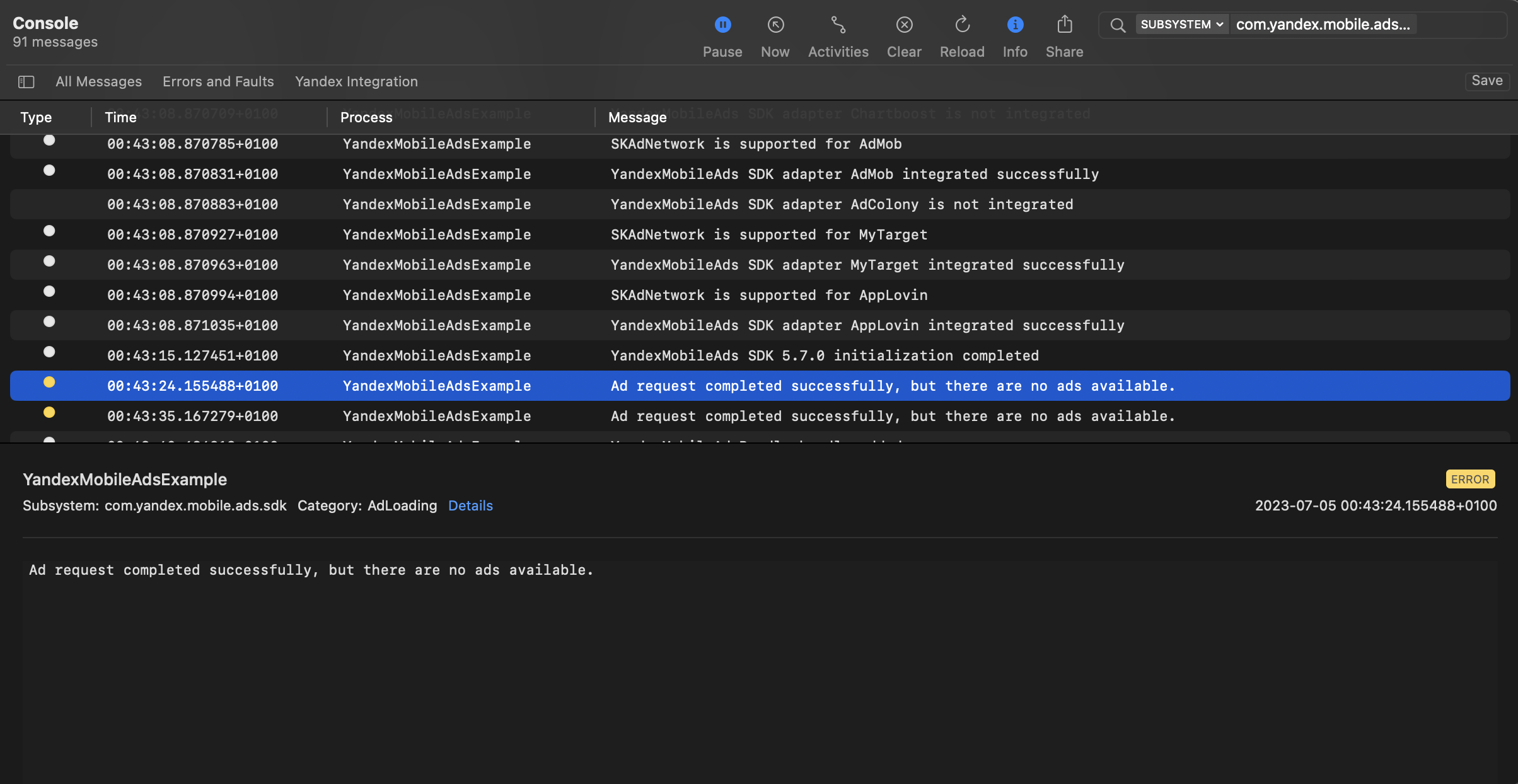
You can test your ad integration using the native Console tool.
To view detailed logs, call the YandexAds class's enableLogging method.
YandexAds.enableLogging()
To view SDK logs, go to the Console tool and set Subsystem = com.mobile.ads.ads.sdk. You can filter logs by category or error level.
If you're having problems integrating ads, you'll get a detailed report on the issues and recommendations for how to fix them.
Tips
Ad preloading
Loading an ad may take several seconds, depending on the number of ad networks connected in Mobile Mediation and the user's internet speed. We recommend preloading ads before displaying them.
Call load in advance to display the loaded ad at the right moment.
To begin preloading the next ad immediately after serving the current one, you can link this process to the onAdDismissed() event.
If you cache ads on too many screens that are unlikely to be shown, your ad effectiveness could drop. For example, if users complete 2-3 game levels per session, you shouldn't cache ads for 6-7 screens. Your ad viewability could decrease otherwise, and the advertising system might deprioritize your app.
To ensure caching benefits your app, monitor the “Show rate” or “View rate” metrics in the Boost interface. If it's under 20%, you should probably revise your caching algorithm. The higher the percentage of impressions, the better.
Additional resources
-
Link to pub.dev.
Android
Link to GitHub.
Unity
Link to GitHub.
Flutter
Link to GitHub.
React Native
Link to GitHub.
Compose Multiplatform
Link to GitHub.
iOS
Link to GitHub.
iOS inline
Link to GitHub.
iOS sticky
Link to GitHub.
iOS interstitial
Link to GitHub.
iOS app open ad
Link to GitHub.
iOS rewarded
Link to GitHub.
iOS feed ad
Link to GitHub.