Interstitial ads
Interstitial advertising is a full-screen ad format embedded within the app content during natural pauses, such as transitioning between game levels or completing a target action.
When an app displays an interstitial ad, the user can either click through to the advertiser's site or close the ad and return to the app.
During interstitial ad impressions, the user's attention is fully focused on the ad, which results in a higher cost for such impressions.
Appearance
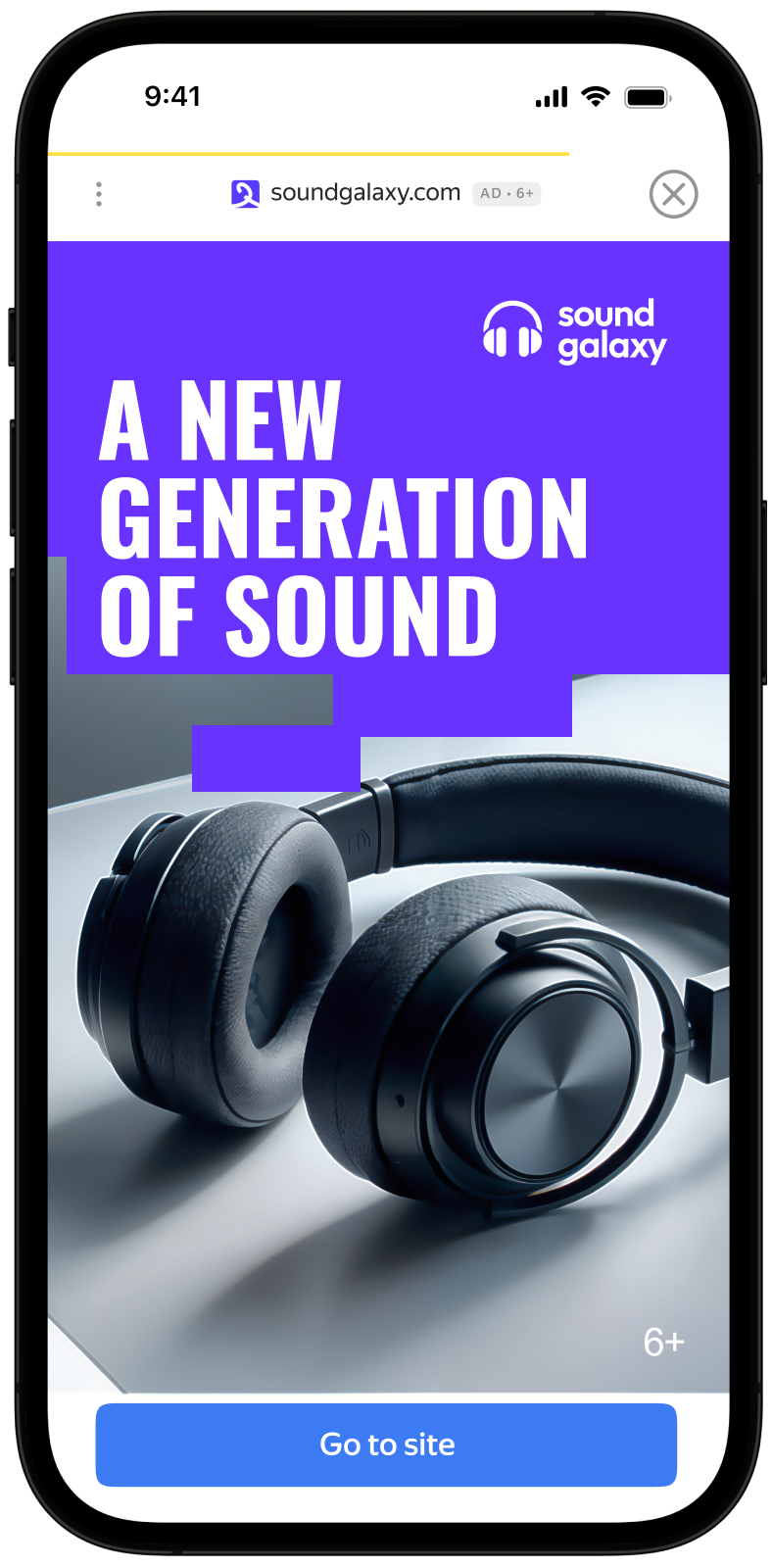
This guide will show how to integrate interstitial ads into iOS apps. Besides code samples and instructions, it contains format-specific recommendations and links to additional resources.
Prerequisite
- Follow the SDK integration steps described under Quick start.
- First, you need to initialize the advertising SDK.
- Make sure you're using the latest version of the Yandex Mobile Ads SDK, and if you're using mediation, update to the most recent version of the unified build.
Implementation
Key steps for integrating interstitial ads:
- Create and configure the
InterstitialAdLoaderad loader. - Set a delegate and implement the required
InterstitialAdLoaderDelegatemethods. - Load the ad.
- Pass additional settings if you're using Adfox.
- If needed, set a delegate for the ad object and implement the required
InterstitialAdDelegatemethods. - Render the ad.
Features of interstitial ad integration
-
All calls to Yandex Mobile Ads SDK methods must be made from the main thread.
-
We strongly advise against attempting to load a new ad when receiving an error in the
func interstitialAdLoader(_ adLoader: InterstitialAdLoader, didFailToLoadWithError error: AdRequestError)callback. If you need to load an ad fromfunc interstitialAdLoader(_ adLoader: InterstitialAdLoader, didFailToLoadWithError error: AdRequestError), restrict ad loading retries to avoid recurring failed ad requests due to network connection constraints. -
We recommend maintaining a strong reference to the ad and its loader throughout the lifespan of the screen where the ad interaction is taking place.
Loading ads
To load interstitial ads, you need to create an instance of the InterstitialAdLoader class.
To notify when ads load or fail to load, set the delegate property for the InterstitialAdLoader class and implement the InterstitialAdLoaderDelegate delegate.
final class InterstitialViewController: UIViewController {
    private lazy var interstitialAdLoader: InterstitialAdLoader = {
        let loader = InterstitialAdLoader()
        loader.delegate = self
        return loader
    }()
}

extension InterstitialViewController: InterstitialAdLoaderDelegate {
    func interstitialAdLoader(_ adLoader: InterstitialAdLoader, didLoad interstitialAd: InterstitialAd) {
        // This method will call after successfully loading
    }

    func interstitialAdLoader(_ adLoader: InterstitialAdLoader, didFailToLoadWithError error: AdRequestError) {
        // This method will call after getting any error while loading the ad
    }
}
To load an ad, you'll need the ad unit ID (adUnitId) from the Boost interface.
You can expand ad request parameters through AdRequestConfiguration, passing user interests, contextual page data, location details, or other info. Adding extra context to ad requests can greatly improve ad relevance. To learn more, see Ad targeting.
The following example shows how to load an interstitial ad from the View Controller:
final class InterstitialViewController: UIViewController {
    private lazy var interstitialAdLoader: InterstitialAdLoader = {
        let loader = InterstitialAdLoader()
        loader.delegate = self
        return loader
    }()

    func loadAd() {
        let configuration = AdRequestConfiguration(adUnitID: "R-M-XXXXX-YY")
        interstitialAdLoader.loadAd(with: configuration)
    }
}
Displaying ads
Interstitial ads should be displayed during natural pauses in the app's usage. A good example of this would be impressions between game levels or when a user completes an action, such as downloading a file.
After the interstitial ad is successfully loaded, the func interstitialAdLoader(_ adLoader: InterstitialAdLoader, didLoad interstitialAd: InterstitialAd) method will be called. Use it to display the interstitial ad.
final class InterstitialViewController: UIViewController {
    private var interstitialAd: InterstitialAd?

    func showAd() {
        interstitialAd?.show(from: self)
    }
}

extension InterstitialViewController: InterstitialAdLoaderDelegate {
    func interstitialAdLoader(_ adLoader: InterstitialAdLoader, didLoad interstitialAd: InterstitialAd) {
        self.interstitialAd = interstitialAd
        self.interstitialAd.delegate = self

        showAd()
    }
}
Testing interstitial ad integration
Using demo ad units for ad testing
We recommend using test ads to test your ad integration and your app itself.
To make sure that test ads are returned for each ad request, we created a special demo ad placement ID designed to help you test your ad integration.
Demo adUnitId: demo-interstitial-yandex.
Warning
Before publishing your app in the store, make sure to replace the demo placement ID with the real ID you obtained in the interface Boost.
For the list of all available demo ad placement IDs, see Demo ad units for testing.
Testing ad integration
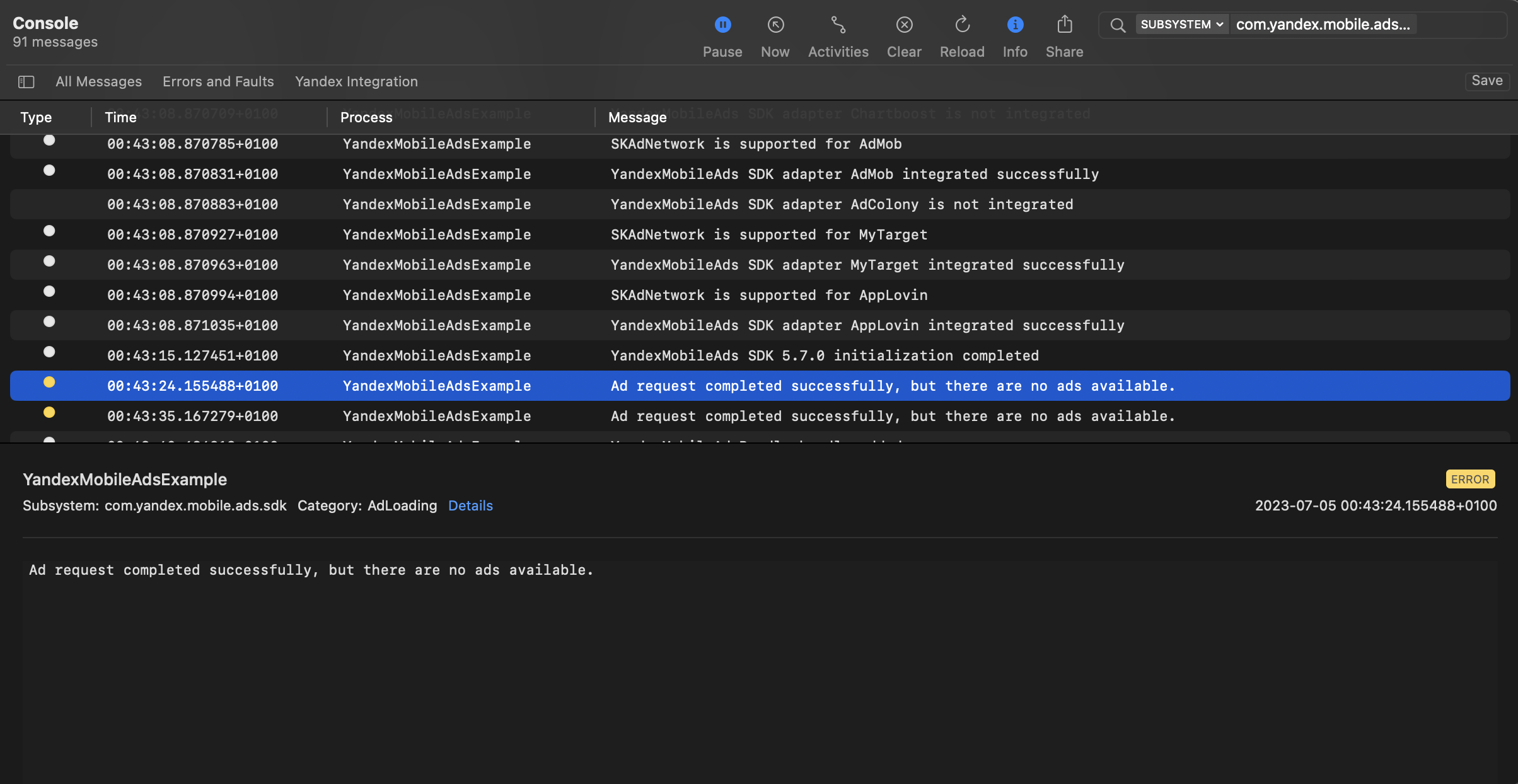
You can test your ad integration using the native Console tool.
To view detailed logs, call the MobileAds class's enableLogging method.
MobileAds.enableLogging()
To view SDK logs, go to the Console tool and set Subsystem = com.mobile.ads.ads.sdk. You can also filter logs by category and error level.
If you're having problems integrating ads, you'll get a detailed report on the issues and recommendations for how to fix them.
Additional resources
- Link to GitHub.