Interstitial ads
Interstitial advertising is a full-screen ad format embedded within the app content during natural pauses, such as transitioning between game levels or completing a target action.
When an app displays an interstitial ad, the user can either click through to the advertiser's site or close the ad and return to the app.
During interstitial ad impressions, the user's attention is fully focused on the ad, which results in a higher cost for such impressions.
Appearance
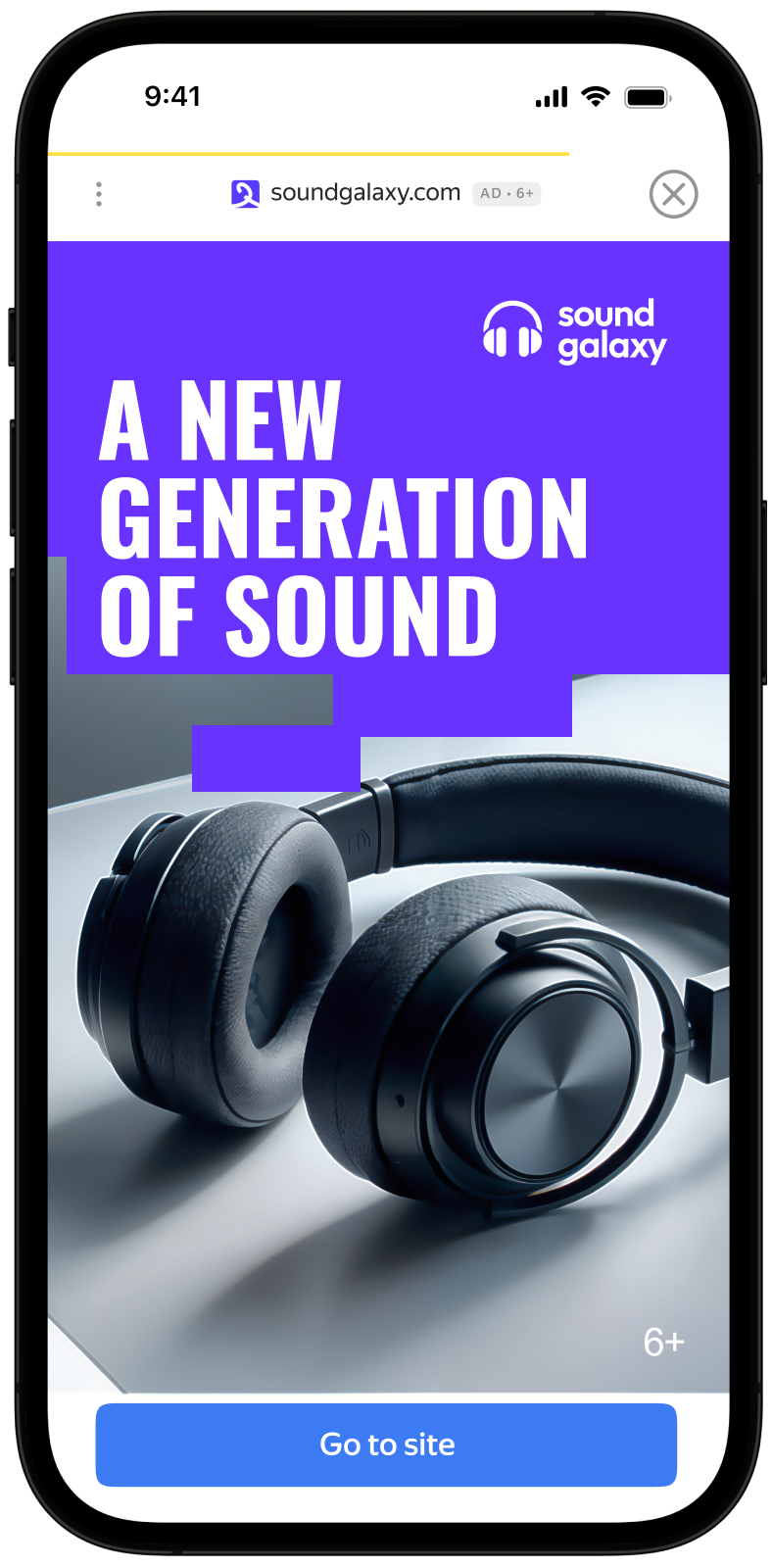
This guide covers the process of integrating interstitial ads into React Native apps. Besides code samples and instructions, it also contains format-specific recommendations and links to additional resources.
Prerequisite
- Follow the Yandex Mobile Ads React Native plugin integration steps described under Quick start.
- Make sure that you have the latest version of the Yandex Mobile Ads React Native plugin. If you're using mediation, update to the most recent single build version.
Implementation
Key steps for integrating interstitial ads:
- Create an
InterstitialAdLoader. - Set up the parameters for loading ads using an
AdRequestParamsobject. - Load the
InterstitialAdobject. - Set the ad's callback functions.
- Display the
InterstitialAdobject.
Features of interstitial ad integration
If the loadAd method returns an error, don't try to load a new ad again. If there's no other option, limit the number of ad load retries. This will help avoid constant unsuccessful requests and connection issues if there are limitations.
Loading ads
To load your interstitial ads, create an InterstitialAdLoader object. To do this, call the InterstitialAdLoader.create() method.
To load ads, you need the ad unit ID you obtained in the Boost interface (adUnitId). You can also customize your ad request parameters by passing user interest data, page context, location, or other additional data. Adding extra context to ad requests can greatly improve ad relevance. To learn more, see Ad targeting.
To load your interstitial ad, call the loadAd method of the InterstitialAdLoader class object.
The example below shows how to load an interstitial ad:
let loader = await InterstitialAdLoader.create()
    .catch((error) => {
        // Handle error gracefully
        return;
    });
if (!loader) {
    return;
}
let ad = await loader.loadAd({
    adUnitId: 'R-M-XXXXXX-Y', // for debug you can use 'demo-interstitial-yandex'
    targeting: {
        age: '20',
        contextQuery: 'context-query',
        contextTags: ['context-tag'],
        gender: Gender.Female,
        location: new Location(55.734202, 37.588063),
    },
})
    .then((ad) => {
        console.log(`Did load, adInfo: ${JSON.stringify(ad.adInfo)}`);
        return ad;
    })
    .catch((error) => {
        // Handle error gracefully
        return;
    });
Displaying ads
Interstitial ads should be displayed during natural pauses in the app's usage. A good example of this would be impressions between game levels or when a user completes an action, such as downloading a file.
To track an interstitial ad's lifecycle events, set callback functions for the InterstitialAd class object.
To display an interstitial ad, use the show() method:
ad.onAdShown = () => {
    console.log('Did show');
};
ad.onAdFailedToShow = (error) => {
    console.log(`Did fail to show with error: ${JSON.stringify(error)}`);
};
ad.onAdClicked = () => {
    console.log('Did click');
};
ad.onAdDismissed = () => {
    console.log('Did dismiss');
};
ad.onAdImpression = (impressionData) => {
    console.log(`Did track impression: ${JSON.stringify(impressionData)}`);
};
ad.show();
Testing interstitial ad integration
Using demo ad units for ad testing
Use test ads to check your interstitial ad integration and the app itself. To make sure that test ads are returned for each ad request, you can use a special demo ad placement ID.
Demo adUnitId: demo-interstitial-yandex.
Warning
Before publishing your app in the store, make sure to replace the demo placement ID with the real ID you obtained in the Boost interface.
For the list of all available demo ad placement IDs, see Demo ad units for testing.
Testing ad integration
You can check if your interstitial ads are integrated correctly using the SDK's built-in analyzer. A detailed report with the test results will appear in the log.
To view the report, search for the keyword “YandexAds” in Logcat, a tool for debugging Android apps.
adb logcat -v brief '*:S YandexAds'
If the integration is successful, the following message is returned:
adb logcat -v brief '*:S YandexAds'
mobileads$ adb logcat -v brief '*:S YandexAds'
I/YandexAds(13719): [Integration] Ad type interstitial was integrated successfully
If there are any interstitial ad integration issues, you'll get a detailed issue report and troubleshooting recommendations.
Using demo ad units for ad testing
Use test ads to check your ad integration and the app itself. To make sure that test ads are returned for each ad request, you can use a special demo ad placement ID.
Demo adUnitId: demo-interstitial-yandex.
Warning
Before publishing your app in the store, make sure to replace the demo placement ID with the real ID you obtained in the Boost interface.
For the list of all available demo ad placement IDs, see Demo ad units for testing.
Testing ad integration
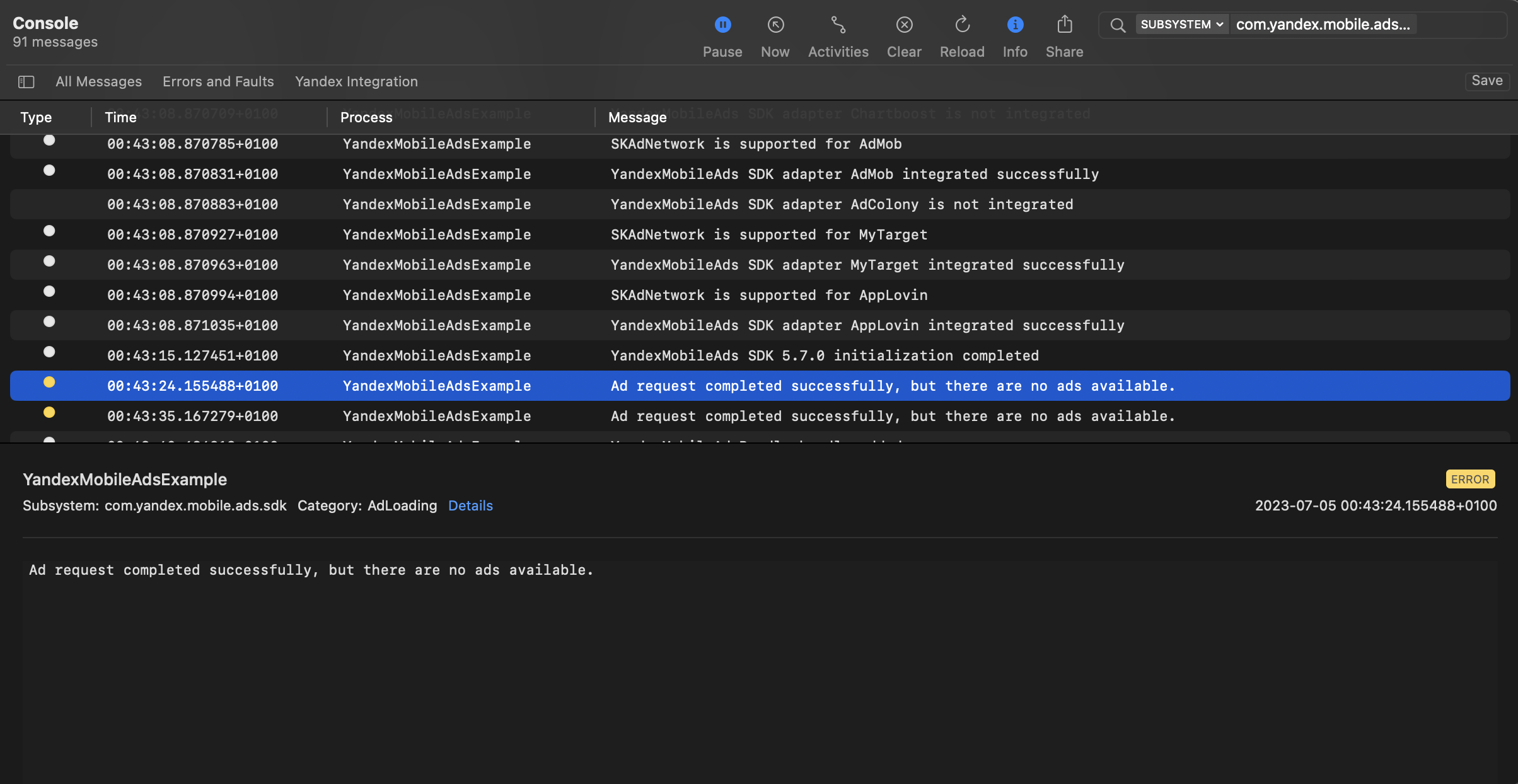
You can test your ad integration using the native Console tool.
To view detailed logs, call the YandexAds class's enableLogging method.
YandexAds.enableLogging()
To view SDK logs, go to the Console tool and set Subsystem = com.mobile.ads.ads.sdk. You can filter logs by category or error level.
If you're having problems integrating ads, you'll get a detailed report on the issues and recommendations for how to fix them.
Tips
Ad preloading
Loading an ad may take several seconds, depending on the number of ad networks connected in Mobile Mediation and the user's internet speed. We recommend preloading ads before displaying them.
Call the loadAd method in advance to instantly show the ad when it's needed.
To begin preloading the next ad immediately after serving the current one, you can link this process to the onAdDismissed event.
If you cache ads on too many screens that are unlikely to be shown, your ad effectiveness could drop. For example, if users complete 2-3 game levels per session, you shouldn't cache ads for 6-7 screens. Your ad viewability could decrease otherwise, and the advertising system might deprioritize your app.
To ensure caching benefits your app, monitor the “Show rate” or “View rate” metrics in the Boost interface. If it's under 20%, you should probably revise your caching algorithm. The higher the percentage of impressions, the better.
Additional resources
- Link to GitHub.