Adaptive inline banner
An adaptive inline banner is a flexible banner ad format that ensures maximum efficiency by optimizing ad size for each device.
With this ad type, developers can set the maximum allowable ad width and height, and the system determines the optimal ad size automatically. To choose the best ad size, adaptive inline banners use a maximum height instead of a fixed one. This helps improve performance.
Typically, this format is used in feed-based apps or contexts where it's acceptable to primarily focus user attention on ads.
Appearance
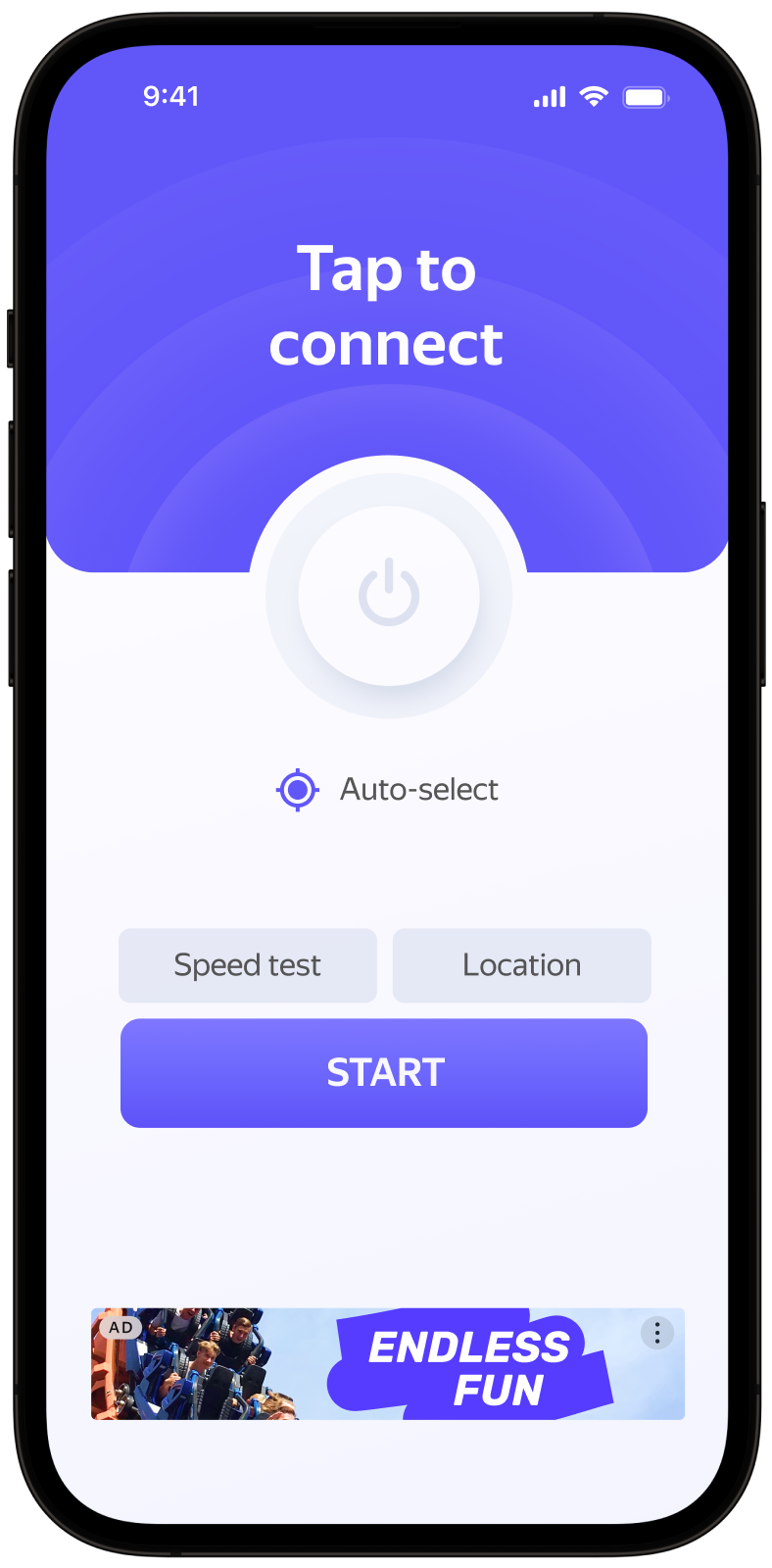
This guide shows how to integrate adaptive inline banners into Unity apps. Besides code samples and instructions, it also contains format-specific recommendations and links to additional resources.
Prerequisite
- Follow the Yandex Mobile Ads plugin integration steps described under Quick start.
- Make sure that you have the latest version of the Yandex Mobile Ads Unity Plugin. If you're using mediation, update to the most recent single build version.
Implementation
Key steps to integrate an adaptive inline banner:
- Create and configure the Banner ad object.
- Register a callback listener.
- Load the ad.
- Pass additional settings if you're using Adfox.
Specifics of adaptive inline banner integration
-
If the
onAdFailedToLoadevent returns an error, don't try to load a new ad again. If there's no other option, limit the number of ad load retries. This will help avoid constant unsuccessful requests and connection issues if there are limitations. -
For adaptive inline banners to work properly, make your app layouts adaptive. Otherwise, your ads might render incorrectly.
-
Adaptive inline banners work best when utilizing the full available width. In most cases, this will be the full width of the device screen. Be sure to consider the padding parameters set in your app and the display's safe area.
-
Adaptive inline banners are designed to be placed in scrollable content. Their height can be the same as the device screen or limited by the maximum height, depending on the API.
-
To get the size of the ad, use the method
BannerAdSize.Inline(screenWidth, maxAdHeight), which accepts the available width of the ad container and the maximum acceptable ad height as arguments. -
The
BannerAdSizeobject, which is calculated using theBannerAdSize.InlineSize(screenWidth, maxAdHeight)method, contains technical data for selecting the most effective ad sizes on the backend. The height of an ad may change each time it is loaded. You can get the actual width and height of the ad after receiving a message confirming that the ad has been loaded successfully.
Adding Banner to the project
To display a banner in your app, create a Banner object in the script (in C#) that is attached to the GameObject.
using UnityEngine;
using YandexMobileAds;
using YandexMobileAds.Base;

public class YandexMobileAdsInlineBannerDemoScript : MonoBehaviour
{
    private Banner banner;

    private int GetScreenWidthDp()
    {
        int screenWidth = (int)Screen.safeArea.width;
        return ScreenUtils.ConvertPixelsToDp(screenWidth);
    }

    private void RequestInlineBanner()
    {
        BannerAdSize bannerMaxSize = BannerAdSize.Inline(GetScreenWidthDp(), 100);
        banner = new Banner(bannerMaxSize, AdPosition.BottomCenter);
    }
}
The Banner constructor contains the following parameters:
-
BannerAdSize: Size of the banner you want to display. -
AdPosition: The position on the screen. -
InlineSize(int width, int maxHeight): Banner dimensions.
Set the width and maximum allowable height. The ad will fit into these dimensions. The height of the selected ad won't exceed the height of the device screen.
Loading and rendering ads
After creating and configuring an object of the Banner class, you need to load the ad. To load the ad, use the LoadAd method, passing an AdRequest object with your ad unit ID as a parameter.
Before loading an adaptive inline banner, calculate the ad size for each device.
The operation is performed automatically via the SDK API: BannerAdSize.InlineSize(screenWidth, maxAdHeight).
You can expand ad request parameters through AdTargeting by passing user interests, contextual page data, location, or other additional info. Adding extra context to ad requests can greatly improve ad relevance. To learn more, see Ad targeting.
To enable notifications when ads load or fail to load and track an adaptive inline banner's lifecycle events, set callback functions for the BannerAd class instance.
private void RequestInlineBanner()
{
    // ...

    string adUnitId = "demo-banner-yandex"; // replace with "R-M-XXXXXX-Y"
    AdRequest request = new AdRequest(adUnitId);
    banner.LoadAd(request);
}
Banner ad events
To track events that occur in banner ads, register a delegate for the appropriate EventHandler, as shown below:
using System;
// ...

private void RequestInlineBanner()
{
    // ...
    // Called when the banner ad has been loaded
    banner.OnAdLoaded += HandleAdLoaded;

    // Called if an error occurs during the loading proces
    banner.OnAdFailedToLoad += HandleAdFailedToLoad;

    // Called when the app becomes inactive because the user clicked an ad and is about to switch to another app (such as mobile browser)
    banner.OnLeftApplication += HandleLeftApplication;

    // Called when the user returns to the app after clicking an ad
    banner.OnReturnedToApplication += HandleReturnedToApplication;

    //Called when the user clicks the ad
    banner.OnAdClicked += HandleAdClicked;

    // Called when an impression is recorded
    banner.OnImpression += HandleImpression;
    // ...
}

private void HandleAdLoaded(object sender, EventArgs args)
{
    Debug.Log("AdLoaded event received");
    banner.Show();
}

private void HandleAdFailedToLoad(object sender, AdFailureEventArgs args)
{
    Debug.Log($"AdFailedToLoad event received with message: {args.Message}");
    // We advise against loading a new ad using this method
}

private void HandleLeftApplication(object sender, EventArgs args)
{
    Debug.Log("LeftApplication event received");
}

private void HandleReturnedToApplication(object sender, EventArgs args)
{
    Debug.Log("ReturnedToApplication event received");
}

private void HandleAdClicked(object sender, EventArgs args)
{
    Debug.Log("AdClicked event received");
}

private void HandleImpression(object sender, ImpressionData impressionData)
{
    var data = impressionData == null ? "null" : impressionData.rawData;
    Debug.Log($"HandleImpression event received with data: {data}");
}
Testing adaptive inline banner integration
Using demo ad units for ad testing
Use test ads to check your adaptive inline banner integration and the app itself. To make sure that test ads are returned for each ad request, you can use a special demo ad placement ID.
Demo adUnitId: demo-banner-yandex.
Warning
Before publishing your app in the store, make sure to replace the demo placement ID with the real ID you obtained in the Boost interface.
For the list of all available demo ad placement IDs, see Demo ad units for testing.
Testing ad integration
You can check if your adaptive inline banners are integrated correctly using the SDK's built-in analyzer. A detailed report with the test results will appear in the log.
To view the report, search for the keyword “YandexAds” in Logcat, a tool for debugging Android apps.
adb logcat -v brief '*:S YandexAds'
If the integration is successful, the following message is returned:
adb logcat -v brief '*:S YandexAds'
mobileads$ adb logcat -v brief '*:S YandexAds'
I/YandexAds(13719): [Integration] Ad type banner was integrated successfully
If there are any banner integration issues, you'll get a detailed issue report and troubleshooting recommendations.
Using demo ad units for ad testing
Use test ads to check your ad integration and the app itself. To make sure that test ads are returned for each ad request, you can use a special demo ad placement ID.
Demo adUnitId: demo-banner-yandex.
Warning
Before publishing your app in the store, make sure to replace the demo placement ID with the real ID you obtained in the Boost interface.
For the list of all available demo ad placement IDs, see Demo ad units for testing.
Testing ad integration
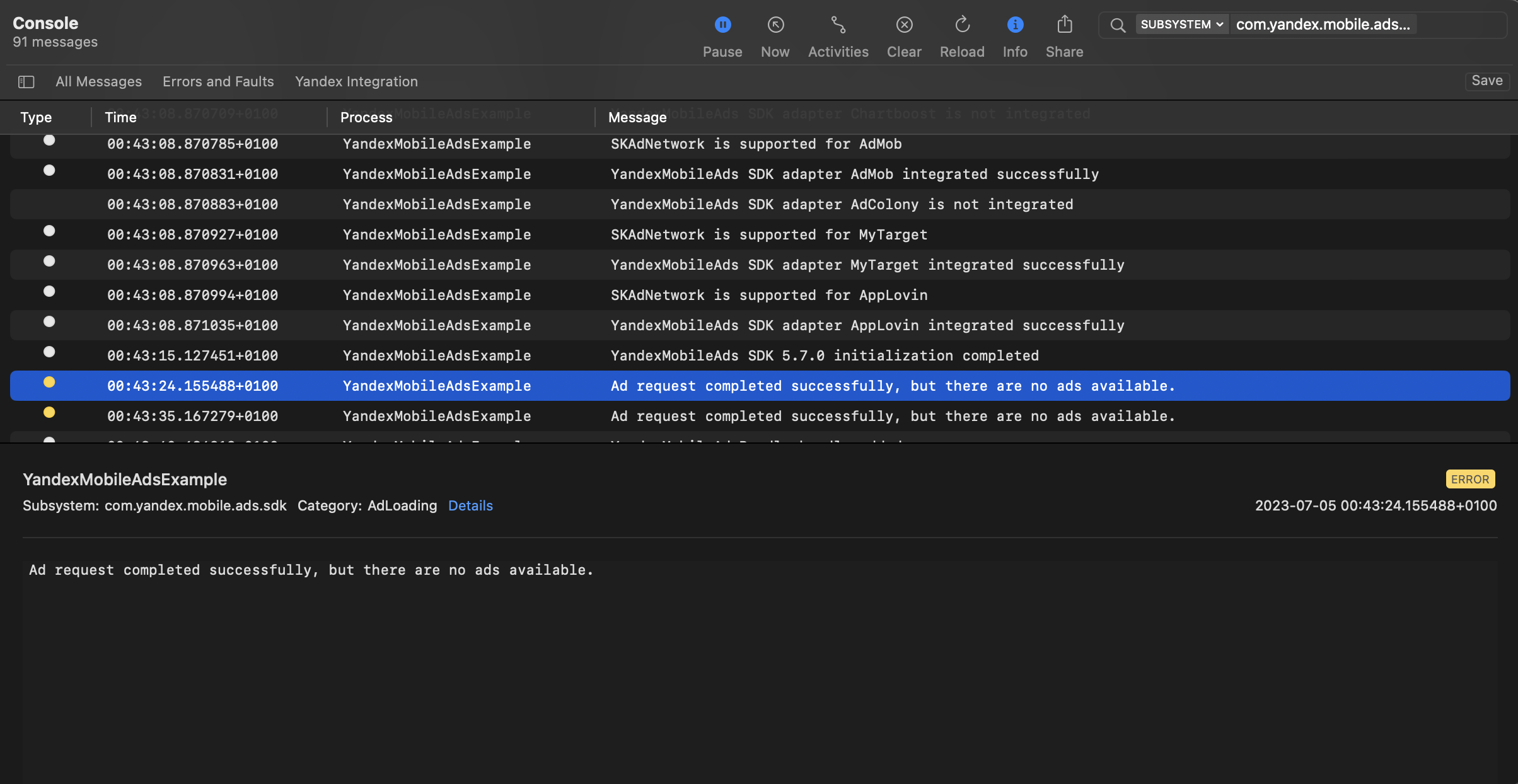
You can test your ad integration using the native Console tool.
To view detailed logs, call the YandexAds class's enableLogging method.
YandexAds.enableLogging()
To view SDK logs, go to the Console tool and set Subsystem = com.mobile.ads.ads.sdk. You can filter logs by category or error level.
If you're having problems integrating ads, you'll get a detailed report on the issues and recommendations for how to fix them.
Tips
Ad preloading
Loading an ad may take several seconds, depending on the number of ad networks connected in Mobile Mediation and the user's internet speed. We recommend preloading ads before displaying them.
You can load an ad at app startup or just before it's shown. Make sure to preserve the object between scenes using the DontDestroyOnLoad(gameObject) call. That ensures the ad that's loaded is not deleted with the gameObject on scene change.
When you then need to render the banner, call banner.Show().
If you cache ads on too many screens that are unlikely to be shown, your ad effectiveness could drop. For example, if users complete 2-3 game levels per session, you shouldn't cache ads for 6-7 screens. Your ad viewability could decrease otherwise, and the advertising system might deprioritize your app.
To ensure caching benefits your app, monitor the “Show rate” or “View rate” metrics in the Boost interface. If it's under 20%, you should probably revise your caching algorithm. The higher the percentage of impressions, the better.
Clearing unused memory
We recommend calling banner?.Destroy() and re-creating the Banner object before each ad request. That ensures that all memory that was utilized is cleared, and the app can request and show ads many times without overwhelming the device. That can also prevent code errors related to repeated ad loading and lifecycle disruptions.
Additional resources
- Link to GitHub.